
First sign-in
Connect the standard edition to a running honk, create its administrator if needed, and check the backend status. Complete Service management first; lite users should follow Connect doona lite.
1. Open the interface
From the gateway or a device on its LAN, open http://192.168.1.1:9527/ui/, replacing the address with your gateway's API listener address. For a hostname or a separately hosted interface, follow hostname and origin access.
With no saved backend profile, the interface discovers the API at the hosting address. If the form points at the wrong backend, select Change backend URL. Check sign-in requirements if discovery or authentication is unavailable.
Before signing in, use the upper-right controls to change the language, palette and color scheme.
2. Follow the form you see
| Form | Action |
|---|---|
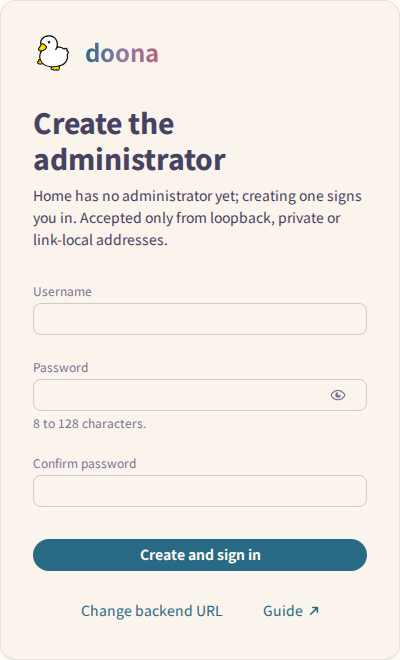
| Create the administrator | Enter Username, Password and Confirm password, then select Create and sign in. |
| Sign in | Enter the existing administrator's Username and Password, then select Sign in. |
| Token required | Enter the backend's configured secret in Token, then select Connect. |
For a new account, the username must contain 1 to 64 ASCII letters, digits, underscores, periods or hyphens. The password must contain 8 to 128 characters, and its confirmation must match.
In token mode, use the Token field's show/hide control to check the entered secret before connecting.
3. Check the backend
- Open System status. On a phone, choose Activity in the bottom bar first.
- Check the lifecycle status and the Engine card. Confirm that the engine is honk and the version is the build you installed.
- Inspect Backend features. Use feature requirements to interpret unavailable controls.
Continue with Route your first connection to add a subscription and test a proxy route, or use the interface tour to find a page.
If sign-in fails
| Symptom | Next step |
|---|---|
| The browser cannot open the page | Run curl http://192.168.1.1:9527/api on the gateway, replacing the IP. If it works there but the LAN browser cannot connect, check whether the gateway firewall blocks port 9527. If it fails on the gateway too, check the service and listener in Service management. |
| The form reports no native API | Check honk version. |
| honk refuses administrator setup | Check the allowed client addresses under sign-in requirements. |
| honk rejects credentials or you forgot the password | Follow sign-in troubleshooting. |
See Configuration for authentication keys. Do not put a password or token in a screenshot or issue report.
Source: doona upstream, licensed under CC BY 4.0.